

Choosing the right AI coding assistant is no longer simple. You are not just comparing features—you are deciding how your development workflow will operate. Cursor vs Claude Code? The real question is how each tool fits into your daily coding process.
I see many developers focus on code quality alone. That approach misses the bigger picture. Both tools rely on advanced Large Language Models, so output quality is often similar. The real difference appears in workflow, control, and execution style.
In this guide, I break down how Cursor IDE and Claude AI differ in real development scenarios. You will understand when each tool works best and how to use them effectively in modern Software Development.
TL;DR Quick Start
If you want fast, interactive coding inside your editor, Cursor is the better fit. It gives you tight control, inline Code Completion, and smooth Refactoring directly in your Integrated Development Environment.
If you want deeper reasoning, batch-style Code Generation, and automation across tasks, Claude AI works better. It behaves more like an execution agent powered by Large Language Models.
Best real-world setup:
- Use Claude AI for planning, structure, and bulk generation
- Use Cursor for implementation, debugging, and fine control
The strongest workflows combine both instead of choosing only one.
Cursor Vs Claude Code At A Glance

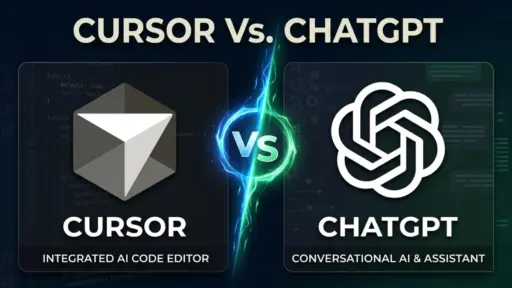
Before going deep into Cursor AI vs Claude Code comparison, you need a clear mental model. These tools are not direct replacements. They represent different approaches to AI Coding Assistant design. One is editor-centric, the other is agent-centric.
Here, I’ll share a fast, practical comparison of both tools.
Core Difference In One Line
Here’s the simplest way to understand it.
- Cursor IDE = AI inside an Integrated Development Environment
- Claude AI = AI as an external agent via CLI or API
That difference shapes everything else.
With Cursor, you stay inside your editor. You write, edit, and review code with AI assistance. It behaves like an advanced version of Code Completion, similar to GitHub Copilot, but more interactive.
With Claude AI, you step outside the editor. You give instructions, and it executes tasks more independently. It feels closer to delegating work than collaborating line by line.
Example:
- In Cursor, you refactor a function interactively
- In Claude, you ask it to refactor an entire module
| Practical Takeaway Use Cursor for tight feedback loops. Use Claude when you want task-level execution. |
What Each Tool Optimizes For
Now, important part. These tools optimize different developer behaviors.
Cursor IDE focuses on:
- Code visibility and control
- Real-time Code Completion
- Inline Debugging and Refactoring
- Navigating large codebases
Claude AI focuses on:
- Task automation
- Parallel execution
- Long-context reasoning
- Delegation of structured work
This difference comes from how Artificial Intelligence is applied. Cursor enhances your workflow. Claude shifts part of your workflow away from you.
Example:
If you are reviewing complex logic, Cursor keeps you grounded.
If you are generating boilerplate across files, Claude saves time.
| Practical Takeaway Choose based on task type, not tool preference. |
When Each Tool Wins Quickly
You often need a fast decision. Here’s a practical mapping based on real usage.
Use Cursor IDE when:
- You need to understand existing code
- You are performing step-by-step Refactoring
- You want precise control over changes
- You rely on editor navigation
Use Claude AI when:
- Tasks are well-defined and repeatable
- You want to automate workflows
- You are working with multiple components
- You need background execution
Example scenario:
You are updating API logic across 10 files.
- Cursor: manual, controlled updates
- Claude: batch-style execution
Here’s the catch. Neither tool is universally better.
| Practical Takeaway Match the tool to the phase of work. This is where most developers make mistakes. |
Let’s Talk About The Core Paradigm Shift

Most comparisons stop at features. That is not enough. You need to understand how these tools change development itself. The shift is from tool-based coding to workflow-based coding. This section explains what is actually changing underneath.
IDE-Centric Vs Agent-Centric Development
Let’s break this down clearly.
IDE-centric development means your primary workspace is the editor. Tools like Cursor IDE extend the capabilities of an Integrated Development Environment. You still control every step. AI assists you, but does not take over execution.
Agent-centric development is different. Tools like Claude AI act as independent workers. You define tasks, and the system executes them. This is closer to delegation than assistance.
Example:
- IDE-centric: You write a function and refine it with AI suggestions
- Agent-centric: You ask AI to implement a feature across multiple files
This shift matters because it changes your role.
You move from “coding line by line” to “designing tasks and reviewing output.”
| Practical Takeaway If you prefer control and visibility, stay IDE-centric. If you prefer delegation and speed, adopt agent-centric workflows. |
Role of Large Language Models In Coding
Both tools rely on Large Language Models, but how they use them differs.
These models are built using Machine Learning and trained on large datasets. They understand patterns in Programming Languages, enabling tasks like Code Generation, Code Completion, and explanation.
Here’s the key point. The model is not the differentiator anymore.
Both Cursor IDE and Claude AI can use similar or comparable models from OpenAI or Anthropic. That means raw output quality is often close.
The difference lies in:
- How context is passed
- How tasks are structured
- How results are applied
Example:
You ask both tools to generate a REST API.
- Both produce valid code
- But one integrates it directly into your editor
- The other generates it as a complete task output
| Practical Takeaway Focus less on model quality. Focus more on how the tool uses the model. |
Why Tool Choice Is Now Workflow Choice
Here’s where most developers get it wrong.
They ask: “Which tool writes better code?”
The better question is: “Which tool fits my workflow stage?”
Modern AI Coding Assistant tools are no longer just helpers. They shape how you work across the full Software Development lifecycle.
You typically operate in two modes:
- Exploration mode → testing ideas, generating options
- Execution mode → refining, validating, shipping code
Claude AI fits exploration and execution at scale.
Cursor IDE fits controlled iteration and validation.
Example:
You are designing a system architecture.
- Claude helps generate multiple approaches
- Cursor helps refine the chosen one
This is not about replacing one tool. It is about aligning tools with phases.
| Practical Takeaway Think in workflows, not tools. That is how you get consistent results. |
Feature-Level Comparison That Actually Matters
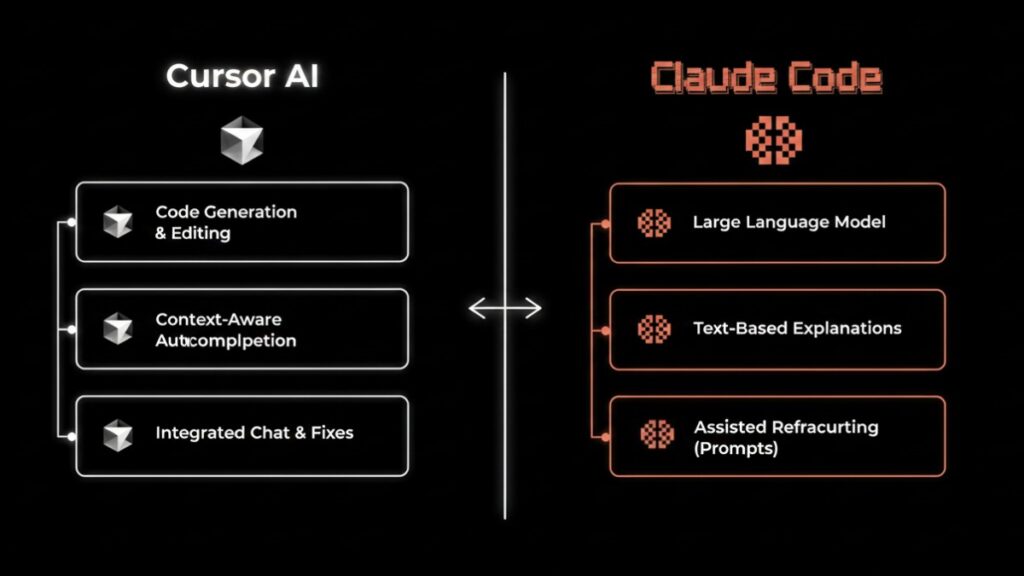
Now let’s get specific. Features still matter, but only when tied to real usage. Instead of listing everything, I will focus on what actually impacts your daily work. This section breaks down key capabilities with practical context.
Code Generation and Accuracy
Both tools perform well in Code Generation tasks. This is expected, as they rely on similar Artificial Intelligence foundations.
In most cases, you will not see major differences in correctness. If your prompt is clear, both tools generate usable code. If your prompt is vague, both produce weak output.
Example:
Prompt: “Build a pagination system for API responses.”
- Both tools generate working logic
- Differences appear in structure and explanation
Where Claude AI stands out:
- Produces structured, well-explained outputs
- Handles large tasks better
Where Cursor IDE stands out:
- Integrates code directly into your files
- Allows quick iteration and fixes
| Practical Takeaway Accuracy depends more on your input than the tool itself. |
Code Completion and Inline Editing
This is where Cursor IDE clearly leads.
It provides advanced Code Completion inside your editor. This feels similar to GitHub Copilot, but with more control and interaction. You can accept, modify, or reject suggestions instantly.
Claude AI does not operate inline. It generates responses separately. You must manually integrate changes into your codebase.
Example:
- Cursor suggests a function while you type
- Claude generates the full function after a prompt
This difference impacts speed.
Inline editing reduces friction. You stay focused and avoid context switching.
| Practical Takeaway If you rely on continuous coding flow, Cursor is more efficient. |
Debugging and Refactoring Experience
Debugging is where workflow differences become obvious.
Cursor IDE supports inline Debugging. You can:
- Inspect code
- Apply fixes
- Test changes immediately
This keeps everything within the Code Editors environment.
Claude AI approaches debugging differently. It analyzes problems in chunks. It often suggests broader fixes instead of small adjustments.
Example:
Bug in authentication logic
- Cursor: fix specific lines
- Claude: suggest full flow redesign
For Refactoring, both tools are strong. However:
- Cursor is better for incremental changes
- Claude is better for large-scale restructuring
| Practical Takeaway Use Cursor for precise fixes. Use Claude for structural improvements. |
Context Awareness and Memory
Context handling is critical in modern development.
Claude AI excels at long-context reasoning. It can process large chunks of code and maintain coherence across them. This is powered by advanced Natural Language Processing (NLP) capabilities.
Cursor IDE focuses on local context. It understands your current file or selection better, but may struggle with very large codebases.
Example:
- Reviewing a single function → Cursor performs well
- Reviewing an entire module → Claude performs better
However, Cursor compensates with visibility. You can navigate files easily and maintain awareness yourself.
| Practical Takeaway Choose Claude for large context tasks. Use Cursor for focused work. |
Workflow Comparison (Real Developer Scenarios)
This is where the real difference appears. Features alone do not define productivity. Your workflow does. You need to understand how each tool behaves during development tasks. This section maps both tools to real working modes you experience daily.
Exploration Mode (Claude Strength)
Exploration mode is when requirements are not fully clear. You are testing ideas, evaluating approaches, and generating options. This is where Claude AI performs strongly.
It works well because it supports task-level thinking. You can define a problem, and it generates multiple structured solutions using Code Generation and reasoning capabilities.
Example:
You are designing a microservice.
You ask Claude to:
- Suggest architecture patterns
- Generate multiple API structures
- Compare trade-offs
It can handle all of this in one flow.
You can also run tasks in parallel:
- Generate backend logic
- Draft database schema
- Create test cases
This is powered by Artificial Intelligence and deep Natural Language Processing, allowing broader reasoning.
| Practical Takeaway Use Claude when you are exploring options or designing systems. |
Focus Mode (Cursor Strength)
Now, different situation. You already know what to build. You need to execute carefully. This is focus mode, where Cursor IDE performs better.
Cursor keeps you inside your Integrated Development Environment. You see your code, diffs, and structure in real time. This is critical for understanding and precision.
Example:
You are reviewing a complex function.
Cursor allows you to:
- Navigate dependencies
- Apply inline Refactoring
- Fix issues with direct Debugging
This reduces mental overhead. You do not switch contexts.
Unlike AI Chatbots, Cursor behaves like a coding partner embedded in your workflow.
| Practical Takeaway Use Cursor when precision, control, and understanding matter. |
Hybrid Workflow (Advanced Users)
Here’s what experienced developers actually do. They do not choose one tool. They combine both.
You can create a hybrid workflow:
- Use Claude AI for planning and large tasks
- Generate structured outputs
- Move to Cursor IDE for refinement
- Apply changes and validate results
Example workflow:
- Ask Claude to generate a feature module
- Review output
- Import into Cursor
- Refine logic and integrate with system
You can also combine with GitHub Copilot for additional Code Completion.
This approach aligns with real Software Development phases:
- Planning → Claude
- Implementation → Cursor
- Refinement → Cursor
| Practical Takeaway Do not force one tool. Combine them based on workflow stage. |
Real-World Use Cases
Now let’s make this practical. You need to map tools to actual tasks you perform. This section breaks down where each tool fits best across common development scenarios.
Building Features From Scratch
When starting from zero, structure matters more than speed. You need planning, logic, and consistency.
Claude AI performs well here because it can:
- Generate complete modules
- Suggest architecture patterns
- Produce structured outputs
Example:
You want to build a user authentication system.
Claude can:
- Define API endpoints
- Generate backend logic
- Suggest validation rules
Once generated, you move to Cursor IDE to:
- Integrate into your codebase
- Adjust logic
- Apply Refactoring
| Practical Takeaway Start with Claude for structure, then refine in Cursor. |
Refactoring Existing Codebases
Refactoring requires precision. You need to understand existing logic before making changes.
Cursor IDE is more effective because it:
- Provides visibility into code structure
- Supports inline Refactoring
- Keeps changes controlled
Example:
You are cleaning up legacy code.
Cursor helps you:
- Rename variables
- Improve function structure
- Maintain consistency
Claude AI can assist by suggesting improvements. However, applying them requires manual review.
| Practical Takeaway Use Cursor for execution. Use Claude for suggestions. |
Debugging Production Issues
Debugging is time-sensitive. You need fast and accurate fixes.
Cursor IDE supports direct Debugging inside the editor. You can:
- Identify errors
- Apply fixes immediately
- Test results quickly
Claude AI takes a different approach. It analyzes the problem and suggests broader fixes.
Example:
You have a failing API.
- Cursor fix specific error
- Claude analyze root cause and propose redesign
Both approaches are useful, depending on the situation.
| Practical Takeaway Use Cursor for quick fixes. Use Claude for deeper analysis. |
Also Read: How To Use Cursor For Bug Fixing?
Writing Tests and Documentation
Testing and documentation are structured tasks. They benefit from automation.
Claude AI performs well here because it can:
- Generate test cases
- Write documentation
- Maintain consistency
Example:
You provide a function.
Claude generates:
- Unit tests
- Edge case handling
- Documentation comments
You can then use Cursor IDE to:
- Review generated tests
- Adjust logic
- Run validations
This combination improves efficiency.
| Practical Takeaway Delegate repetitive tasks to Claude, validate in Cursor. |
Learning New Programming Languages
Learning requires explanation, not just output.
Claude AI is stronger here due to its ability to explain concepts using Natural Language Processing.
Example:
You are learning a new syntax.
Claude can:
- Explain concepts
- Provide examples
- Compare approaches
Cursor IDE helps you practice by:
- Writing code
- Providing inline Code Completion
- Highlighting errors
This creates a balanced learning loop.
| Practical Takeaway Use Claude to understand. Use Cursor to practice. |
CLI Vs IDE: The Future of AI Development
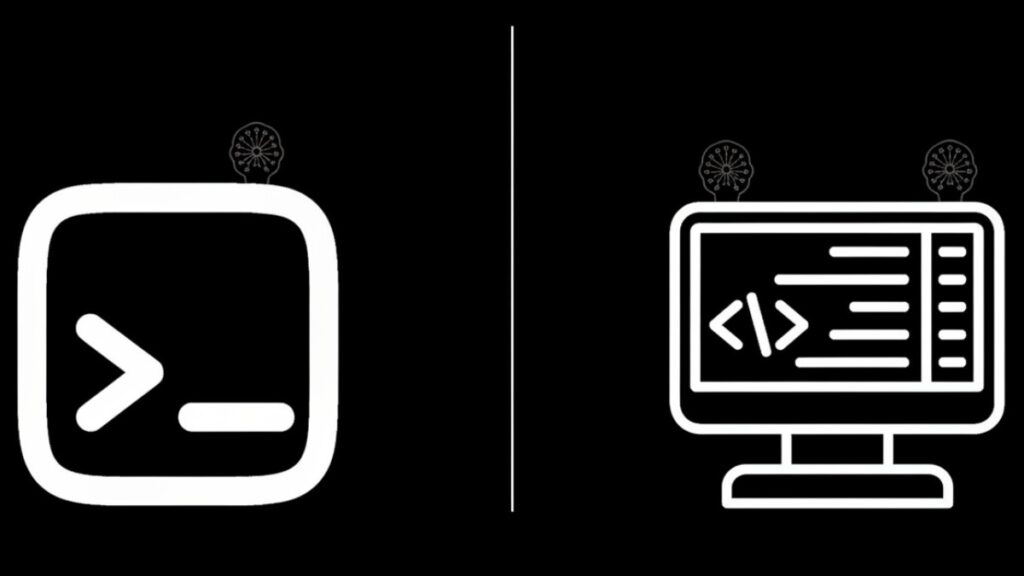
The next shift in development is already visible. Tools are moving beyond assistance into execution environments. You need to understand where CLI-based agents and IDE-based tools fit long term. This section explains how both models scale.
Why CLI Tools Scale Better
CLI-based tools like Claude AI are designed for automation. They integrate directly into workflows without requiring constant human interaction.
This matters in modern Software Development, especially when systems rely on pipelines and automation.
With CLI tools, you can:
- Run tasks asynchronously
- Execute scripts across repositories
- Integrate with deployment pipelines
- Trigger workflows without opening an editor
Example:
You push a commit.
A pipeline runs Claude AI to:
- Analyze changes
- Fix linting issues
- Generate test cases
This level of automation is not easily achievable inside traditional Code Editors.
The reason is simple. CLI tools operate independently of UI constraints. They rely on Machine Learning and structured task execution.
| Practical Takeaway If your workflow involves automation or scaling tasks, CLI tools provide better flexibility. |
Where IDE Tools Still Win
Despite automation trends, IDE tools remain critical. Tools like Cursor IDE are optimized for human-in-the-loop workflows.
You still need:
- Code visibility
- Precise control
- Context awareness
- Step-by-step validation
This is where Integrated Development Environment tools excel.
Example:
You are reviewing a critical production fix.
You need to:
- Inspect logic
- Validate dependencies
- Ensure no side effects
Doing this through a CLI agent is difficult. You need direct interaction.
Cursor IDE enhances this by embedding AI Coding Assistant features directly into your workflow.
| Practical Takeaway For precision and accountability, IDE-based tools remain essential. |
AI In CI/CD Pipelines
Now, important part. This is where Claude AI creates a real advantage.
In CI/CD pipelines, tasks are:
- Repetitive
- Structured
- Well-defined
This makes them ideal for Code Generation, validation, and automation.
Example pipeline using Claude AI:
- Detect new pull request
- Analyze code changes
- Suggest improvements
- Run automated fixes
- Generate summary report
Because it operates via CLI, it integrates naturally into infrastructure.
By contrast, Cursor IDE is not designed to run inside pipelines. It depends on user interaction.
Organizations using Artificial Intelligence at scale are already moving toward this model.
| Practical Takeaway Use Claude for backend automation. Use Cursor for human-driven development. |
Cost Analysis – Based On My Usage
Let me break this down based on how I actually used both tools in my workflow.
I started with Cursor IDE on the $20/month Pro plan. For most days, I use it for inline Code Completion, small Refactoring, and quick Debugging. Even on heavier days, I rarely feel like I’m “running out” of usage. The requests are efficient because the context stays local.
In one of my recent sessions, I worked on:
- Cleaning up a module
- Adding validation logic
- Fixing two bugs
This took around 2–3 hours. I stayed well within limits. No extra cost. That predictability is a big advantage.
Now compare that with Claude AI.
I used Claude for a more complex task:
- Generating a full feature module
- Writing test cases
- Explaining edge cases
The output quality was strong, but I noticed something important. Each interaction consumed more resources because it processed larger context using Large Language Models.
Within a single focused session, I hit usage limits faster than expected. Not in a “pay instantly” way, but in a “you feel the consumption scaling” way.
Here’s what stood out:
- Claude is efficient for big tasks
- But expensive when you iterate frequently
- Especially when context includes multiple files
Why this happens:
- It uses deeper Natural Language Processing
- It handles broader Code Generation tasks
- It processes more tokens per request
Here’s how I see it now:
| Metric | Cursor IDE | Claude AI |
| Pricing Model | Subscription | Usage-based / tiered |
| Daily Usage Feel | Stable | Scales with usage |
| Best For | Continuous coding | Heavy tasks |
| Cost Control | Easy | Needs monitoring |
Disclaimer: Results vary depending on implementation, data quality, and use case.
| Practical Takeaway I rely on Cursor IDE for daily development because it keeps costs predictable. I use Claude AI only when the task justifies the extra compute, like architecture planning or large feature generation. |
That balance keeps both productivity and cost under control. Check the recent pricing of Cursor and Claude Code.
Common Mistakes Developers Make
Many developers misunderstand how to use these tools effectively. The issue is not capability. It is misuse. This section highlights the most common mistakes and how to fix them.
Choosing Based On Hype
A frequent mistake is selecting tools based on popularity instead of workflow fit.
Developers often assume:
- One tool is universally better
- Output quality defines performance
This is incorrect.
Both Cursor IDE and Claude AI rely on strong Large Language Models, often from OpenAI or Anthropic. The real difference is execution model.
Example mistake:
Choosing Claude for everything because it feels more powerful.
Result: slower debugging and unnecessary cost.
Fix:
Evaluate tools based on task type, not perception.
Ignoring Workflow Fit
Another mistake is forcing a single tool into all stages of development.
But Software Development has multiple phases:
- Planning
- Implementation
- Testing
- Refactoring
- Deployment
Each phase behaves differently.
Example:
Using Claude AI for fine-grained debugging creates friction.
Using Cursor IDE for large-scale generation slows you down.
Fix:
Map tools to phases, not projects.
Not Structuring Prompts Properly
Output quality depends heavily on input clarity.
Weak prompts lead to:
- Inconsistent Code Generation
- Poor Debugging suggestions
- Unstructured results
Example:
Bad prompt: “Fix this code”
Better prompt: “Fix memory leak in authentication module and preserve session handling logic”
Structured input improves both tools.
This applies to Natural Language Processing systems directly.
Fix:
Write explicit, constrained prompts with clear goals.
Tools Can Replace Thinking
This is the most critical mistake.
Neither Cursor IDE nor Claude AI replaces engineering judgment. They amplify it.
Example:
If architecture is unclear:
- Claude generates inconsistent solutions
- Cursor helps but cannot define structure
If logic is unclear:
- Both tools reflect ambiguity
AI does not solve unclear thinking. It scales it.
Fix:
Define structure first. Then use AI to execute.
Best Practices For Using These AI Coding Assistants
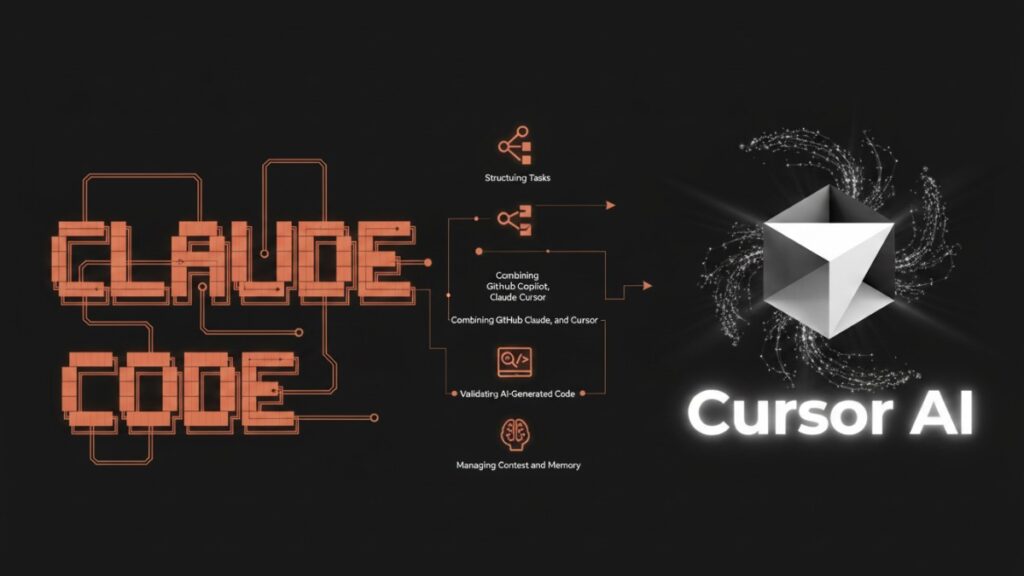
At this stage, the difference between Cursor IDE and Claude AI becomes less about capability and more about discipline. The way you structure work directly impacts outcomes in modern Software Development workflows using AI Coding Assistant tools.
Structuring Tasks For Better Output
Clear task structure is the foundation of reliable results. Both Cursor IDE and Claude AI perform best when instructions are specific and scoped.
Poor structure leads to:
- Incomplete Code Generation
- Misaligned Debugging suggestions
- Over-engineered solutions
Example:
Instead of:
“Improve this authentication system”
Use:
“Refactor authentication module to reduce token validation latency and maintain session persistence logic”
This helps both tools apply Natural Language Processing more effectively.
Practical workflow:
- Break tasks into small units
- Define expected output clearly
- Specify constraints explicitly
| Practical Takeaway Well-structured input consistently improves AI output quality. |
Combining GitHub Copilot, Claude, and Cursor
Advanced developers rarely rely on one tool. They combine multiple AI Coding Assistant systems for layered productivity.
A practical stack:
- Cursor IDE → inline Code Completion, editing, and Refactoring
- Claude AI → system design, bulk generation, and reasoning
- GitHub Copilot → fast suggestions inside editor workflows
Example workflow:
- Use Claude to design API structure
- Use Cursor to implement and refine code
- Use Copilot for small inline completions
This creates a multi-layer development system powered by Artificial Intelligence.
| Practical Takeaway Stack tools based on strengths, not preference. |
Validating AI-Generated Code
AI-generated output should never be trusted blindly. Validation remains critical in any Software Development process.
Even advanced Large Language Models can:
- Miss edge cases
- Misinterpret context
- Generate syntactically correct but logically wrong code
Example:
A generated function may pass compilation but fail under concurrency scenarios.
Validation steps:
- Run unit tests
- Perform manual code review
- Check integration behavior
- Verify edge cases
In Cursor IDE, this is easier due to immediate feedback loops.
In Claude AI, validation is external and must be explicitly managed.
| Practical Takeaway Always validate AI output before production use. |
Managing Context and Memory
Context is one of the most important constraints in AI-assisted development. Both tools depend on how much relevant information you provide.
In Claude AI:
- Large context windows support deep reasoning
- But irrelevant data increases noise and cost
In Cursor IDE:
- Context is more localized
- Easier to manage but less global awareness
Example:
Sending an entire repository to Claude may reduce clarity.
Sending only relevant modules improves accuracy.
Best practices:
- Provide only necessary files
- Summarize system intent before prompts
- Avoid redundant context injection
This improves both performance and cost efficiency.
| Practical Takeaway Context quality matters more than context size. |
Frequently Asked Questiosn (FAQs)
Is Cursor better than Claude Code for daily development?
Cursor is better for daily coding inside an IDE with strong Code Completion and control. Claude is better for planning and bulk Code Generation, but less efficient for continuous hands-on editing and debugging.
Is Claude Code better than Cursor?
Claude is better for reasoning, planning, and multi-step tasks using Large Language Models. Cursor is better for interactive coding, debugging, and precise edits inside an Integrated Development Environment. Neither is universally better.
How to use Claude Code in Cursor?
Use Claude to generate structured code or features, then move output into Cursor IDE. Refine, debug, and test inside the editor using inline tools. This hybrid workflow improves speed and accuracy together.
Can Cursor and Claude Code be used together?
Yes, many developers combine both tools. Claude handles planning and Code Generation, while Cursor manages implementation, Refactoring, and debugging inside the editor. This creates a balanced and efficient workflow.
Which tool is better for debugging complex code?
Cursor is better for step-by-step debugging inside the editor. Claude is better for identifying root causes and suggesting broader fixes. Cursor gives control, while Claude provides higher-level analysis.
Do these tools replace traditional programming?
No, both tools assist rather than replace developers. They improve Code Completion, Debugging, and productivity, but human judgment is still required for architecture, validation, and production-level decisions.
Final Thoughts
The comparison between Cursor IDE vs Claude AI is not about superiority. It is about alignment with development style. Both tools operate on strong Large Language Models, often powered by OpenAI or Anthropic, but their execution models differ significantly.
Cursor?
Cursor is optimized for controlled, interactive development inside an Integrated Development Environment. It strengthens focus, improves visibility, and supports precise Debugging and Refactoring.
Claude?
Claude is optimized for delegation, automation, and parallel execution. It performs well in large-scale Code Generation, system design, and workflow automation using Artificial Intelligence principles.
The key insight is simple. Your output depends more on workflow design than tool selection. Developers who understand this distinction consistently achieve better results across Programming Languages and system complexity levels.

Add your first comment to this post