
Modern development teams don’t just need to fix bugs; they need a repeatable system that catches issues early and prevents them from resurfacing.
Cursor has quietly become that system for many engineers. When used intentionally, it can analyze code patterns, trace dependencies, and identify fixes with a level of precision that manual debugging rarely matches.
After testing Cursor across multiple projects and workflows, I’ve mapped out a runbook that consistently delivers faster, cleaner, and more reliable fixes. This guide breaks down that process.
Follow it, and you’ll have a Cursor for bug fixing workflow that reduces guesswork, shortens resolution time, and strengthens the long-term health of your codebase.
TL;DR Quick Start
Follow these steps to fix bugs efficiently using Cursor:
Scan Your Code
- Open the files or modules you want to check in the Cursor IDE.
- Use targeted prompts to identify potentially error-prone areas (e.g., unhandled promises, null access, deprecated API calls).
Generate Fix Suggestions
Highlight the problematic code and prompt:
Cursor, suggest a fix for [specific bug] in [file].
- Review multiple options and select the one that best fits your project’s architecture.
Validate Fixes
- Run unit and integration tests on the modified code.
- Include edge cases that Cursor may not automatically cover.
Apply Fix and Commit
- Implement the chosen fix.
- Use clear commit messages describing the issue and solution.
Monitor Recurring Bugs
- Track recurring issues in your own logs or issue tracker.
- Use Cursor to search for similar patterns and adjust prompts/templates for future bugs.
Introduction To Cursor For Bug Fixing

Debugging is rarely straightforward. Issues can hide deep in a codebase, interact unpredictably, and drain hours from even skilled developers. Cursor changes that by offering a structured, consistent way to analyze patterns, trace logic, and surface root causes quickly.
Integrate it into your workflow, and debugging becomes faster, cleaner, and far less repetitive. Here’s why Cursor matters, and who benefits most from using it.
Why Use Cursor For Bug Fixing
From my experience, manual debugging often leads to overlooked edge cases or inconsistent fixes. Cursor reduces these risks in three key ways:
- Reduces manual debugging time: Cursor helps you analyze specific files or modules efficiently. By providing code, logs, or test outputs, it can suggest fixes and highlight potential error-prone patterns for you to review. For example, an unhandled promise rejection in an asynchronous API call can be spotted before it crashes production.
- Detects hidden code issues: Even experienced engineers miss subtle bugs, such as nested object access errors or inefficient loops. Cursor examines the context and identifies patterns that may cause runtime issues.
- Suggests optimized fixes: Instead of giving a generic suggestion, Cursor generates multiple actionable solutions. You can review these options, pick the most appropriate one, and even adapt it to your project’s architecture.
By integrating Cursor into your workflow, you’re essentially extending your debugging capabilities with AI-powered precision.
Who This Guide Is For
I recommend this workflow to anyone actively involved in web development or code maintenance, especially if you deal with complex projects.
- Frontend and backend developers: Cursor helps you identify JavaScript errors, CSS conflicts, or API misconfigurations before they escalate.
- QA engineers: You can quickly detect recurring errors across builds, improving the efficiency of your test cycles.
- DevOps engineers: If you manage CI/CD pipelines, Cursor can flag potential failures during build stages, reducing the risk of breaking production environments.
Irrespective of your experience, Cursor allows you to automate repetitive checks and focus on solving higher-level problems, rather than chasing minor bugs manually.
Also Read: Cursor For Web Development
Setting Up Cursor For Debugging In Two Simple Steps
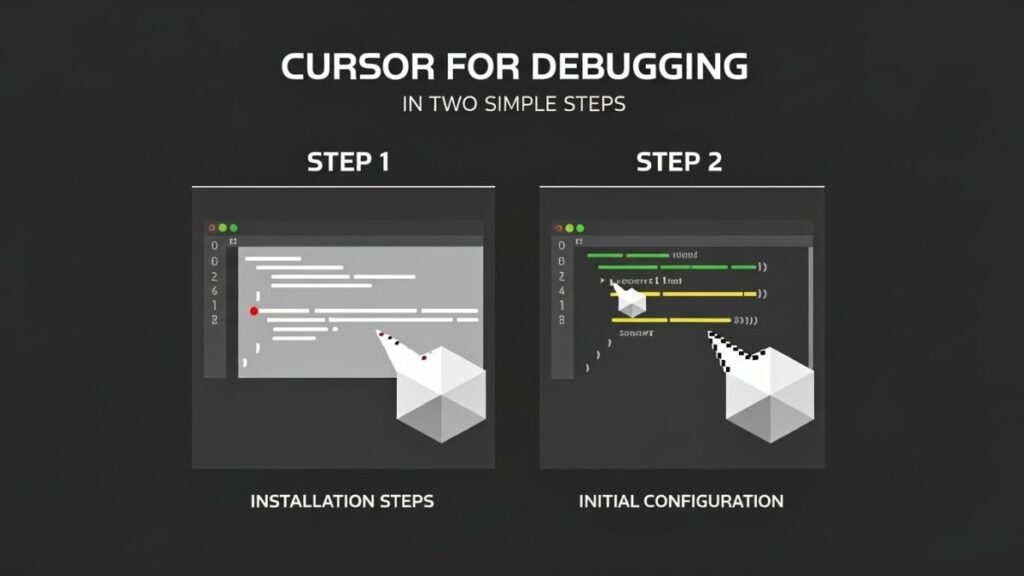
Before you can start fixing bugs efficiently, proper Cursor setup is crucial. Incorrect installation or misconfigured settings can lead to inaccurate suggestions or missed errors. I’ve used Cursor in multiple production projects, and following these steps ensures the tool fully understands your codebase and integrates seamlessly with your workflow.
Below, I’ll cover installation, connecting repositories, and configuring preferences to maximize debugging efficiency.
Step 1 – Installation Steps
Download and install the Cursor app for your operating system from the official Cursor website.
Open your existing project or repository directly inside the Cursor IDE (File → Open Folder).
(Optional) Install the Cursor CLI / Agent if you want to trigger code analysis from the terminal or integrate Cursor into CI/CD pipelines.
Note: Cursor runs as its own IDE, but many developers continue using VS Code or JetBrains for other tasks alongside it.
Step 2 – Initial Configuration
After installation, fine-tuning Cursor ensures it provides actionable, precise suggestions:
- Set preferred language and frameworks:
- Specify JavaScript, TypeScript, Python, or other languages you use.
- Include frameworks like React, Node.js, or Django, so Cursor understands code conventions.
- Specify JavaScript, TypeScript, Python, or other languages you use.
- Enable auto-suggestions for debugging:
- Turn on live scanning to get real-time alerts as you write or modify code.
- Customize the frequency of suggestions to prevent distraction during development.
- Turn on live scanning to get real-time alerts as you write or modify code.
- Adjust alert thresholds for code anomalies:
- Define the severity of errors to flag: warnings, errors, or critical issues.
- Cursor can prioritize errors that are likely to cause runtime failures, saving review time.
- Define the severity of errors to flag: warnings, errors, or critical issues.
Proper configuration ensures that Cursor doesn’t just flag issues, but provides context-aware recommendations, reducing false positives and improving workflow efficiency.
Step-by-Step Bug Fixing Using Cursor
Efficient debugging requires a structured approach. Cursor allows you to identify, analyze, and resolve bugs systematically. The following runbook reflects best practices I’ve used across multiple projects. It combines Cursor’s AI-powered insights with traditional testing and review workflows.
By following these steps, you can reduce error resolution time, maintain cleaner code, and avoid recurring bugs.
Step 1 – Identify Bugs
Open your project in the Cursor IDE and focus on the specific files or modules you want to analyze. Use targeted prompts to ask Cursor to review the code and suggest functions or areas that might be error-prone (for example, unhandled promises, null access, or deprecated API calls).
Carefully review the suggestions and prioritize which issues to address based on your project’s context and risk level.
Step 2 – Generate Fix Suggestions
Once you’ve identified the bug, use the Suggest Fix prompt in Cursor. The AI generates multiple potential solutions for each issue.
For instance, an API timeout may have three suggested fixes: adding retry logic, adjusting request parameters, or implementing error handling middleware. Review these options carefully, and pick the one that best aligns with your project architecture.
// Cursor suggested fix for async API handling
try {
  const response = await fetchData();
  processResponse(response);
} catch (error) {
  logError(error);
  retryFetchData();
}Step 3 – Validate Fixes
After applying a fix, validation is essential. Run unit tests to confirm that your changes don’t break existing functionality. The Cursor can assist by generating Test Coverage prompts that highlight edge cases that may still fail. Also, check integration workflows, especially if the bug affects multiple services or modules.
For example, if a database query fix is applied, ensure that related API endpoints continue to return correct responses. This step reduces regression risk and guarantees your solution is robust before committing code.
Mini-Checklist: Run all relevant unit tests Check integration workflows Review the Cursor’s suggested test coverage Run all relevant unit tests Check integration workflows Review the Cursor’s suggested test coverage |
Step 4 – Apply Fix and Commit
Once validated, integrate the fix into the codebase. Cursor can suggest a clear commit summary, ensuring your version history is understandable for team members. For example, commit messages could be:
Fix: Handle async API rejection in userController.js
Apply best practices by testing the commit locally or in a staging environment before pushing. This step ensures your fix is correctly implemented and reduces the likelihood of new bugs being introduced.
Step 5 – Monitor and Iterate
Even after applying a fix, monitoring is important. Track recurring issues in your own logs or issue tracker. Use Cursor to search for similar patterns in your code or test outputs and suggest potential fixes.
Adjust your prompts or templates for recurring bugs to improve efficiency and help prevent the same issues from resurfacing in the future.
| Mini-Checklist for Complete Bug Fixing Workflow Scan and Prioritize Code – Run Cursor’s full code analysis. – Focus first on modules you’ve identified as recently changed or potentially error-prone based on your review/logs. Review and Apply Fix Suggestions– Compare multiple AI-generated fixes. – Select the solution that aligns with project architecture and best practices. Run Targeted Tests– Execute unit tests on the modified code. – Run integration tests for any dependent modules or services. Commit with Clear Documentation– Push changes with a descriptive commit message. – Include notes about the fix and any edge cases addressed. Track and Monitor Recurring Issues– Log errors and note patterns to improve future bug detection. – Update Cursor prompts or templates based on recurring bug trends. |
Advanced Cursor Debugging Tips
Once you are comfortable with the basic bug-fixing workflow, Cursor can be leveraged for more advanced debugging. Beyond simple fixes, it can help you optimize recurring bug detection, automate repetitive corrections, and track metrics to continuously improve your development process.
By customizing prompts, integrating with testing tools, and analyzing patterns, you can transform Cursor into a proactive debugging assistant rather than just a reactive tool.
Also Read: How To Use Cursor For Testing and QA?
Tip #1: Prompt Engineering For Bug Fixing
One of the most powerful ways to use Cursor is prompt engineering. Instead of generic instructions, craft prompts that guide Cursor to analyze your code deeply. For example, ask:
- “Cursor, explain the root cause of this null reference error in authService.js and suggest fixes.”
- Request multiple solutions so you can compare options before applying a fix. Cursor may suggest conditional checks, restructuring logic, or updating dependencies.
- Include context from surrounding files or related modules. Cursor works best when it understands the dependencies, function calls, and interactions between components.
In practice, I’ve seen teams reduce recurring API errors simply by using well-crafted prompts that include context and expected behavior. Prompt engineering ensures fixes are precise, maintainable, and aligned with project architecture.
Tip #2: Automating Repetitive Fixes
Many bugs repeat across modules or projects, like null reference errors, deprecated API calls, or inconsistent CSS class usage. With Cursor, you can create workflow templates for these common patterns:
- Define a template that identifies the error type and applies a tested fix.
- Enable conservative or “safe mode” automation so Cursor can suggest or apply fixes across multiple files, but always review diffs and run tests, as there’s no guarantee automated changes are 100% safe.
- Example: Fixing null reference errors across all services in a Node.js project using a standardized conditional check.
Automation not only reduces manual effort but also improves consistency, which ensures the same type of error is fixed uniformly across the codebase.
Cursor Debugging Performance Metrics
| Example Metric / Focus Area | Before Cursor | After Cursor | Insights & Recommended Actions |
| Average Bug Resolution Time | 3h | 1.2h | Cursor identifies root causes quickly. Track fix time by bug type to pinpoint bottlenecks. |
| Recurring Bug Frequency | 12/week | 7/week | Log repeated issues. Use Cursor templates for recurring patterns and review AI suggestions weekly. |
| Unit & Integration Test Failures | 5% | 1.5% | Track failed tests. Use Cursor to cover edge cases and validate fixes proactively. |
| High-Risk Code Modules | 6 modules | 2 modules | Focus scanning and code review on modules with frequent errors for preventive maintenance. |
| Developer Time Saved | N/A | 2–3 hours/week | Measure manual effort saved using Cursor’s automated suggestions. Allocate time to refactoring or new features. |
Examples of Bug Fixes Using Cursor
Understanding how Cursor works in practice is key to mastering its bug-fixing potential. Below are real-world examples from both frontend and backend development. These examples illustrate how to structure prompts, review AI suggestions, and apply fixes effectively.
By following these workflows, you can reduce debugging time and increase code reliability.
Example 1 – Fixing API Timeout
Problem: Your API request in fetchData.js occasionally times out, causing failed data fetches.
Cursor Prompt:
Cursor, suggest fix for API timeout in fetchData.js and ensure retries are safe for multiple requests.Action & Workflow:
- Cursor identifies the asynchronous fetch logic as a timeout risk.
- Suggests async/await retry logic with exponential backoff.
- Developer reviews and adjusts retry limits and error logging for production safety.
- Apply the fix, then run unit tests to ensure responses are correctly handled.
Result: Reduces request failures and prevents unhandled promise rejections, improving API reliability.
Example Fix Snippet:
async function fetchDataWithRetry(url, retries = 3) {
  for (let i = 0; i < retries; i++) {
    try {
      const response = await fetch(url);
      return await response.json();
    } catch (error) {
      if (i === retries - 1) throw error;
      await new Promise(res => setTimeout(res, 500 * (i + 1)));
    }
  }
}Example 2 – Resolving Null Reference Errors
Problem: Accessing nested object properties causes TypeError: Cannot read property ‘x’ of undefined.
Cursor Workflow:
- Highlight the problematic object access in your code.
Prompt Cursor:
Cursor, generate a safe fix for null reference errors in authService.js.- Cursor suggests adding conditional checks or optional chaining to prevent runtime crashes.
- Review suggestions and apply the most maintainable solution.
- Run unit tests to confirm edge cases are covered.
Example Fix Snippet:
const userEmail = user?.profile?.email ?? "unknown@example.com";Example 3 – Optimizing CSS Rendering Bugs
Problem: Conflicting CSS rules cause layout inconsistencies across different browsers.
Cursor Prompt:
Cursor, detect conflicting CSS rules in styles.css and suggest a proper ordering or fix.Action & Workflow:
- Cursor analyzes the CSS file and highlights overridden or redundant styles.
- Suggests reordering conflicting rules or consolidating repeated declarations.
- The developer applies the optimized CSS and validates the layout across multiple browsers.
Result: Eliminates rendering inconsistencies, improves page load performance, and reduces manual debugging.
Example Fix Snippet:
/* Original conflicting rules */
.button { color: red; }
.primary-button { color: blue; }

/* Optimized by Cursor */
.button { color: red; }
.primary-button { color: blue !important; }Note: ! important should be used sparingly and typically as a last-resort fix for overriding conflicting styles.
Two Common Challenges & Cursor Workarounds

Even with advanced AI assistance, Cursor is not infallible. Certain complex code contexts, architecture nuances, or interdependent modules may cause it to miss issues or suggest fixes that require human validation.
Working on these challenges and implementing strategies to refine Cursor’s output guarantees safe, reliable code updates. Here’s how you can do this:
Issue #1: Handling Missed Edge Cases
Cursor excels at detecting common bugs, but rare or context-specific issues can be overlooked. To address this:
- Run multiple prompts: Rephrase your query or include additional context from related files. For example:
Cursor, check for all potential null reference errors in authService.js and dependent modules.- Add comprehensive test cases: Edge cases like empty arrays, undefined properties, or network failures may not be caught automatically. Write unit or integration tests targeting these scenarios.
- Validate fixes manually: Even after Cursor suggests a solution, review code paths that may interact with other modules to ensure nothing breaks.
Pro Tip: Treat Cursor as a collaborator rather than a replacement. Its suggestions accelerate bug detection, but developer review is essential for safety.
Issue #2: Conflicting Suggestions
Cursor may provide multiple potential fixes that are technically correct but may conflict with your project’s architecture or coding standards. To resolve this:
- Compare options carefully: Evaluate each suggestion against existing architecture, coding conventions, and performance requirements.
- Test each candidate fix: Apply fixes in a local or staging environment before committing to production.
- Choose the most compatible solution: For example, Cursor may suggest both optional chaining and a try/catch block for the same error. Pick the solution that aligns with your team’s error-handling strategy.
Pro Tip: Maintain a decision log for recurring conflicts. Over time, this helps refine your Cursor prompts and reduces future conflicts.
Final Summary & Key Takeaways
Using the Cursor has changed the way I approach bug fixing. I used to spend hours tracking errors across multiple files.
Now, with a structured workflow, from identifying bugs and generating AI-assisted fixes to validating changes and monitoring recurring issues, debugging is faster, cleaner, and more predictable.
What I’ve learned from hands-on use:
- Follow the workflow: The step-by-step runbook ensures no bug is overlooked.
- Validate fixes: AI suggestions are helpful, but testing in context is essential to avoid new errors.
- Track patterns: Monitoring recurring issues helps spot underlying problems and prevents them from returning.
- Use advanced features: Custom prompts, automation, and test integrations save time and reduce repetitive work.
- Investigate root causes: Going beyond immediate fixes to understand why a bug appeared has prevented countless future errors in my projects.
Fix Bugs Faster With Cursor Bug Fixing Templates Pack
Take your debugging workflow to the next level with the “Cursor Bug Fixing Templates Pack.”
Inside, you’ll get:
- 12 ready-to-use Cursor prompts for common backend and frontend issues (API timeouts, null references, CSS conflicts, etc.).
- 5 step-by-step workflows for bug identification, fix generation, and validation.
- 4 checklists and metrics templates to track fixes, recurring errors, and test coverage.
- 7 example code snippets showing safe, tested bug fixes across real-world scenarios.
- 3 workflow templates for handling multi-file issues, frontend/back-end integration errors, and CSS/JS conflicts.
Delivered in copy-paste-ready format for Cursor or your project repo, designed for developers, QA engineers, and tech leads handling complex projects or high-change codebases.
This pack helps you standardize your debugging process, save time, validate AI-generated fixes safely, and maintain cleaner, more reliable code across all your projects.
Frequently Asked Questions (FAQs)
Can Cursor fix all types of bugs?
Cursor handles most code-level bugs like API errors, null reference issues, or CSS conflicts. Complex architectural problems or logic-specific errors may still require developer review.
Do I need a paid plan for advanced bug fixing?
Basic code scanning and suggestions work on free plans. Automated multi-file fixes, workflow templates, and CI/CD integrations typically require a premium plan.
Can Cursor integrate with CI/CD pipelines?
Yes. Cursor can run in pipelines to analyze code automatically, flag potential issues, and suggest fixes before deployment, reducing production failures.
How accurate are Cursor’s bug fix suggestions?
Accuracy depends on code quality, context, and prompt clarity. Always validate fixes with unit and integration tests. Well-crafted prompts improve relevance and minimize false positives.
How can I handle recurring bugs using Cursor?
Log recurring issues and create reusable Cursor prompts or templates. Over time, Cursor can proactively detect patterns and suggest standardized fixes, reducing repeated errors significantly.